WINDOWS Live Search

To contact me for any clarifications regarding any posts / information, please mail me at arijit [dot] basu [at] gmail [dot] com


Showing posts with label Troubleshooting. Show all posts

Thursday, April 26, 2007

Elements changed between versions of Microsoft Dynamics AX - {Download now available}

Sometimes back I had posted on "Elements changed between versions of Microsoft Dynamics AX". However the download links were not functioning on that page. MS has modified the download links. Now you can download the files.

Elements changed between versions of Microsoft Dynamics AX {Requires partnersource Logon}

Tuesday, December 12, 2006

Missing axsysen-us.ktd text file :(

Sometimes when Launching AX, we get an error as shown below :

"Microsoft Business Solutions-Axapta installation has no text file (axsysen-us.ktd)"

The problem is with the ACU config file in the bindir textbox, on the following line:

bindir,Text,C:\mbs\axapta server\Bin

So change this to:

bindir,Text,C:\mbs\axapta client\Bin

The Ktd files live in the \Bin\ folder instead of the \Appl\ folder.

This will resolve your issue :)

Sunday, November 26, 2006

SHRINKER.ERR :-(

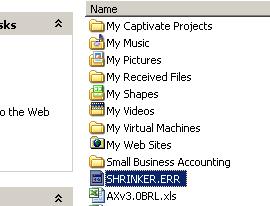
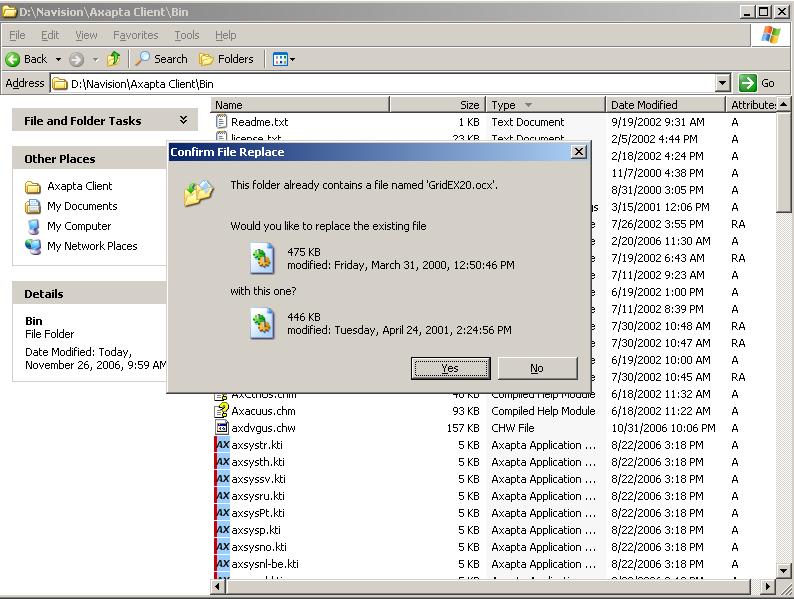
Recently i got an error when I installed DAX 3.0 SP5 on a fresh PC when it was compiling for the first time. The error screen is shown below. I downloaded the latest GridEX20.ocx from http://www.janusys.com/janus/beta/downloads_patches.htm

Replaced in the Client/Bin Folder . The error vanished :-)


An error log was generated in MyDocuments Folder :-(


Replace the GridEX20.ocx and enjoy :-)

Friday, November 24, 2006

How to find out where that error message comes from?

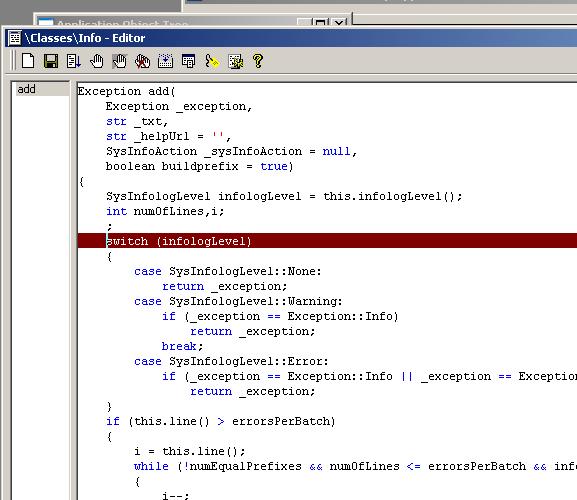
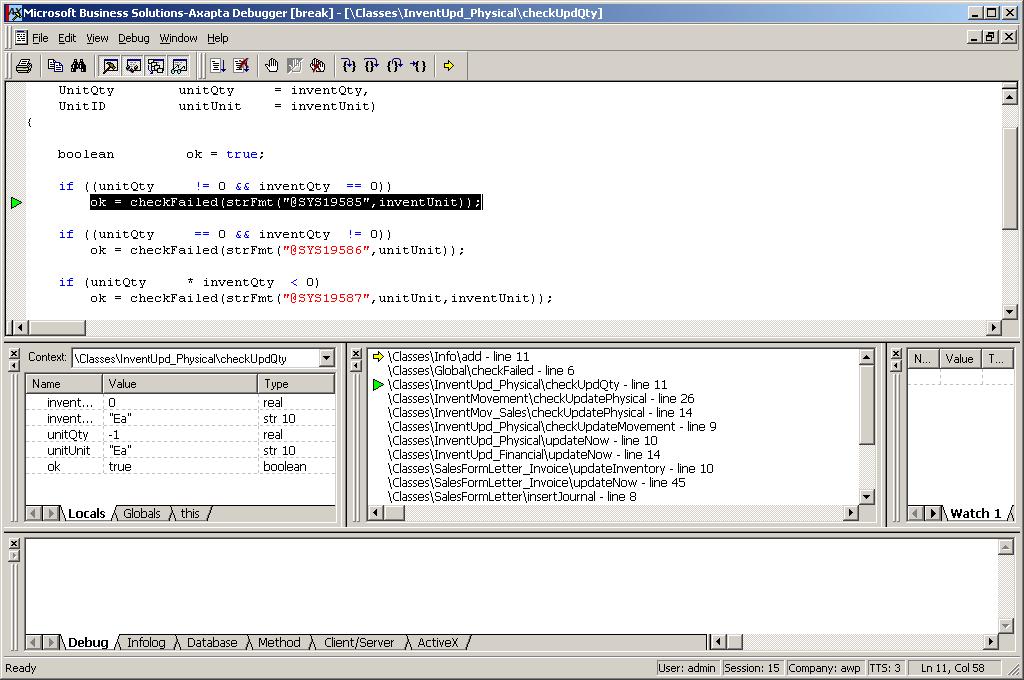
Wanna find out where the error message comes from? Heres the secret.... Place a breakpoint in the class \Classes\Info\add(). After that run the script that shows error. You can observe where the error comes from in the DAX Debugger :-). See the following screenshots.......


Thursday, November 23, 2006

"Journal Name may not be changed when vouchers have been created." error message when entering General Journal

The particular number sequence can be found by:
1. Click General Ledger, click Setup, click Parameters and then look on the Number Sequence Tab. The Number Sequence you will be looking for will be the Number Sequence for Journal.
2. Right-click in the Number Sequence Code column and select the Main Table.
3. In the Number Sequence Window, click the List Button and delete any lines out of the window to correct the issue.